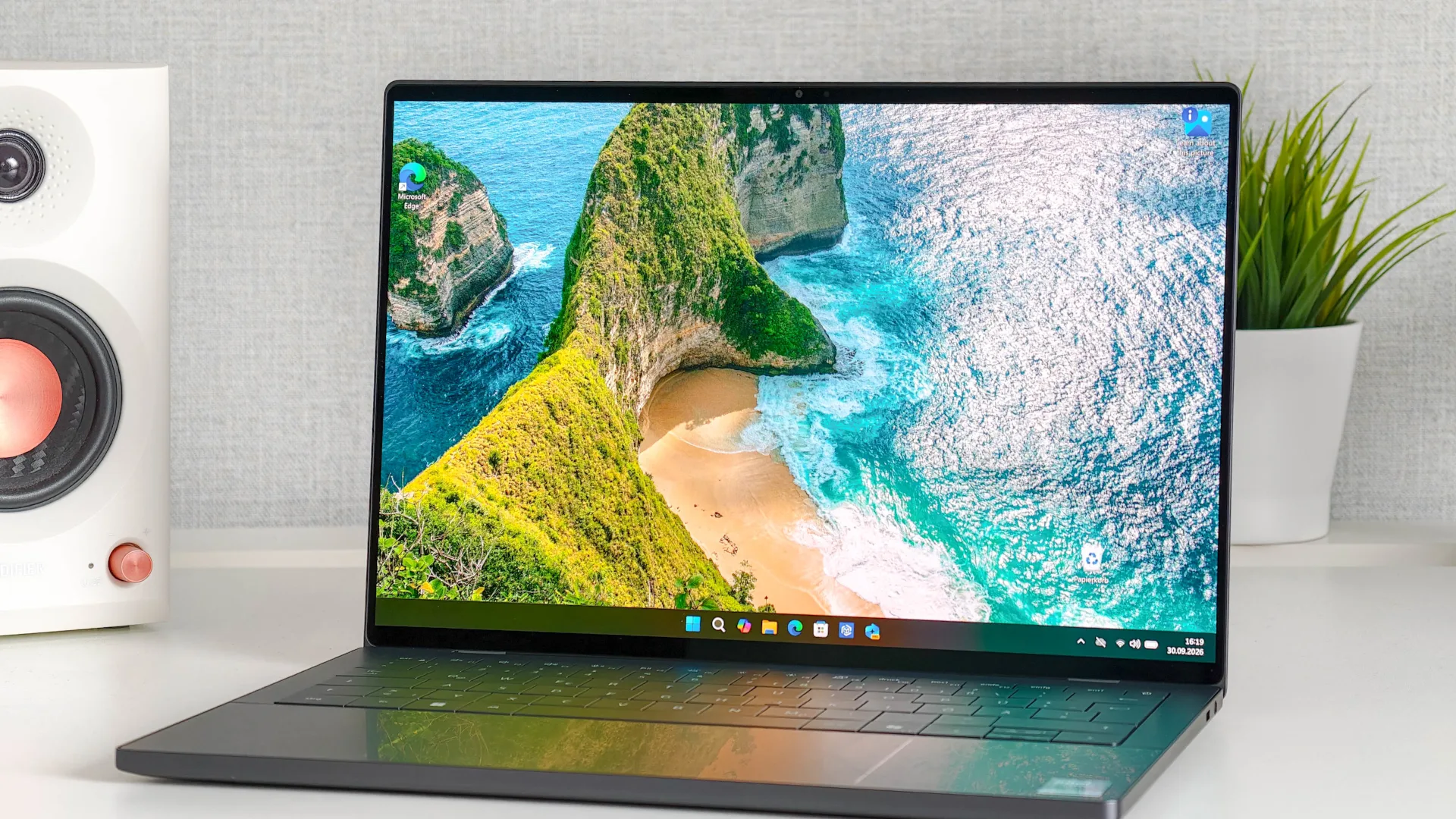
Design: This is exactly how premium should feel.
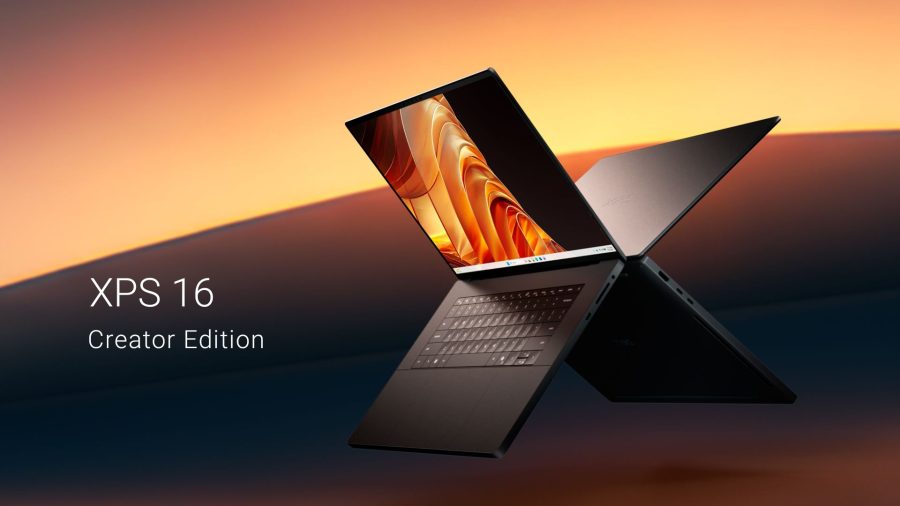
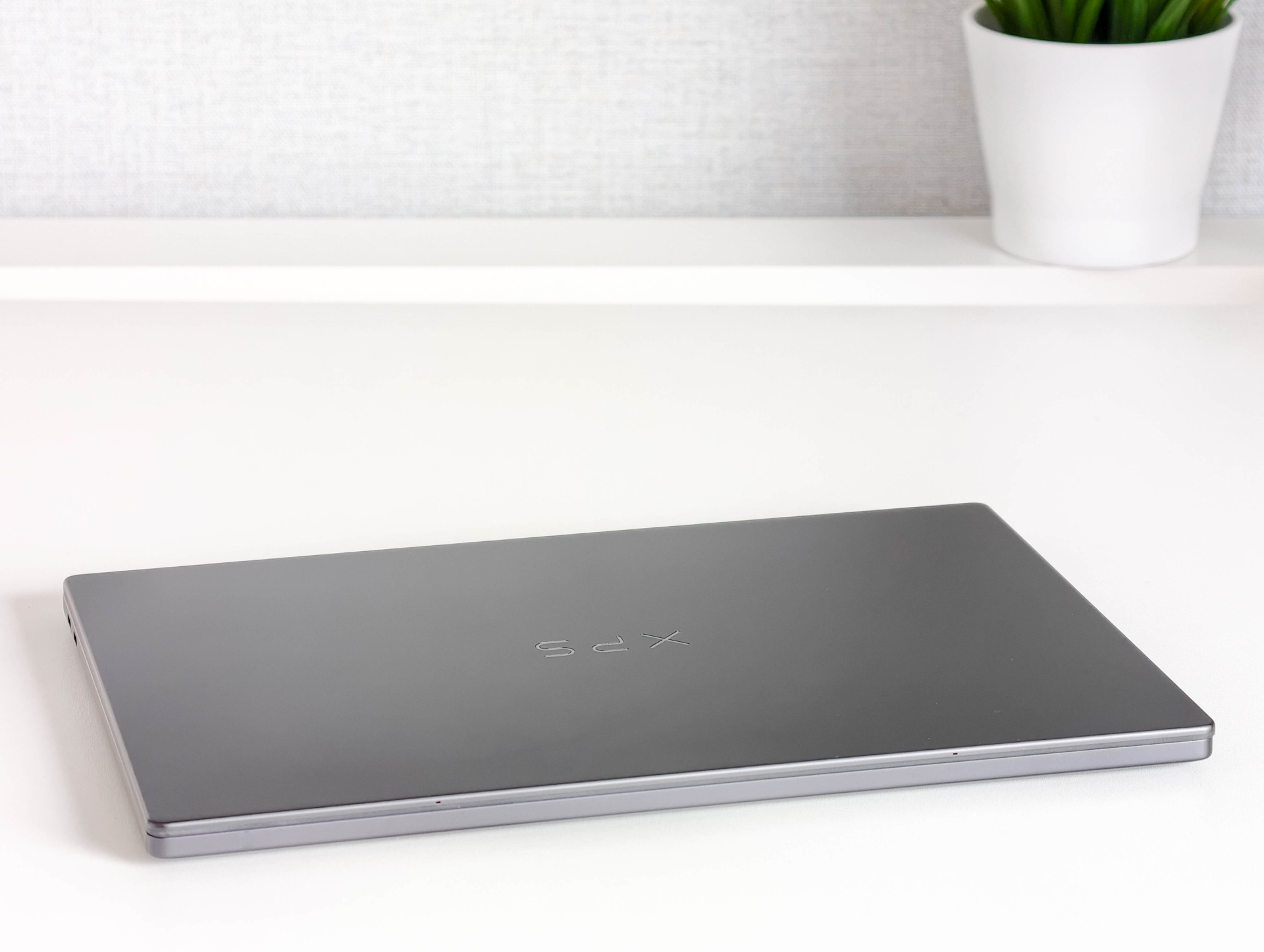
The XPS 14 is housed in a slim graphite aluminum unibody, which makes it clear from the first touch that this is not a cheap notebook from the bargain bin.
The casing is well-made, doesn't flex even under pressure, and at a light 1,36 kilograms, it's easy to carry in a backpack. The OLED version is also remarkably thin at just under 14,6 millimeters, making it ideal for university, work, and travel.
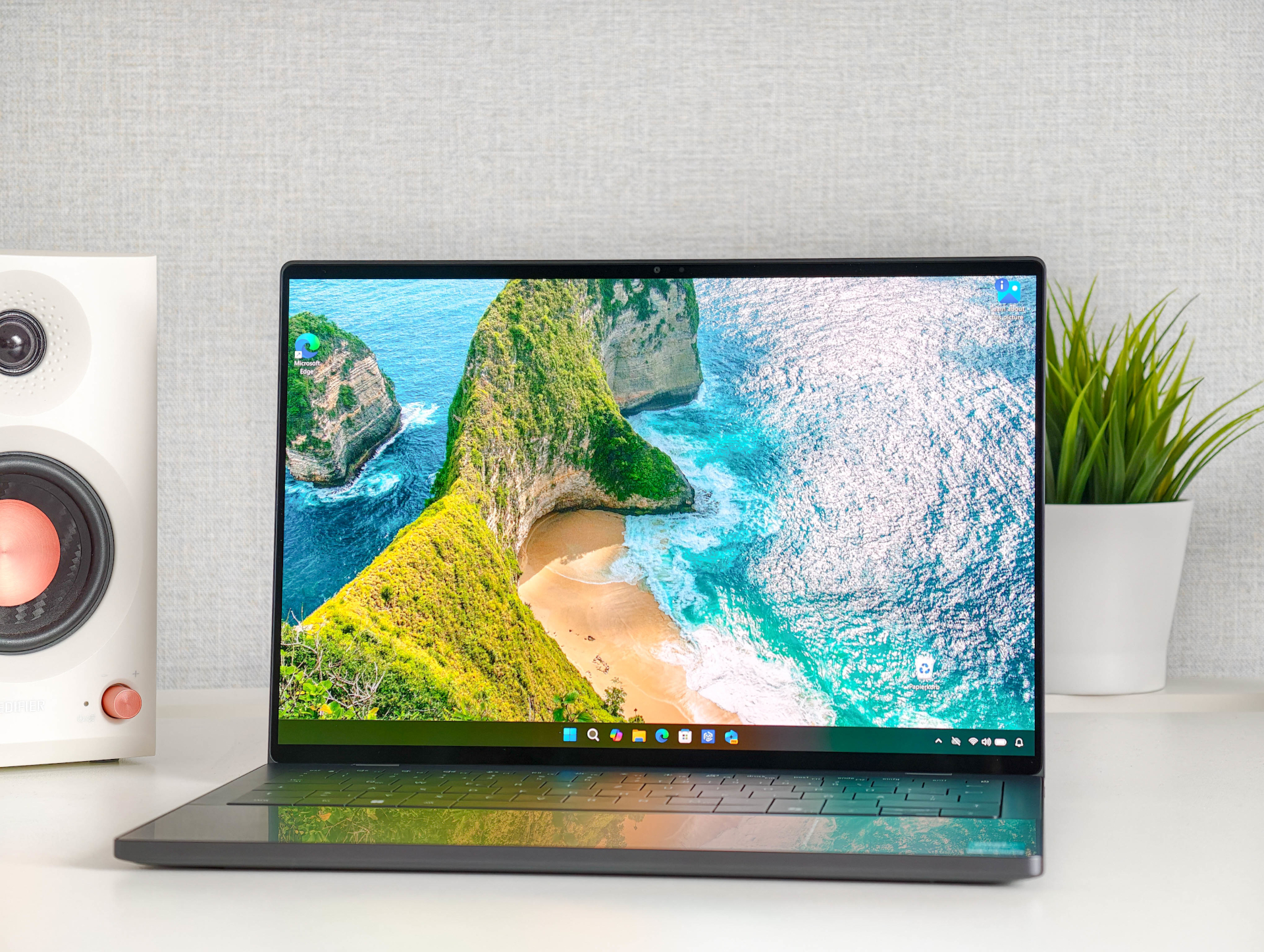
Even when open, Dell maintains the minimalist look. The glass palm rest blends almost seamlessly into the barely visible trackpad, while the keyboard is also integrated very flush into the chassis.
The XPS 14 is somewhat reminiscent of Apple's MacBook line, which isn't necessarily a bad thing. Anyone looking for a high-quality Windows notebook that looks just as good on a desk as it does in a meeting will find little to criticize about the XPS 14.
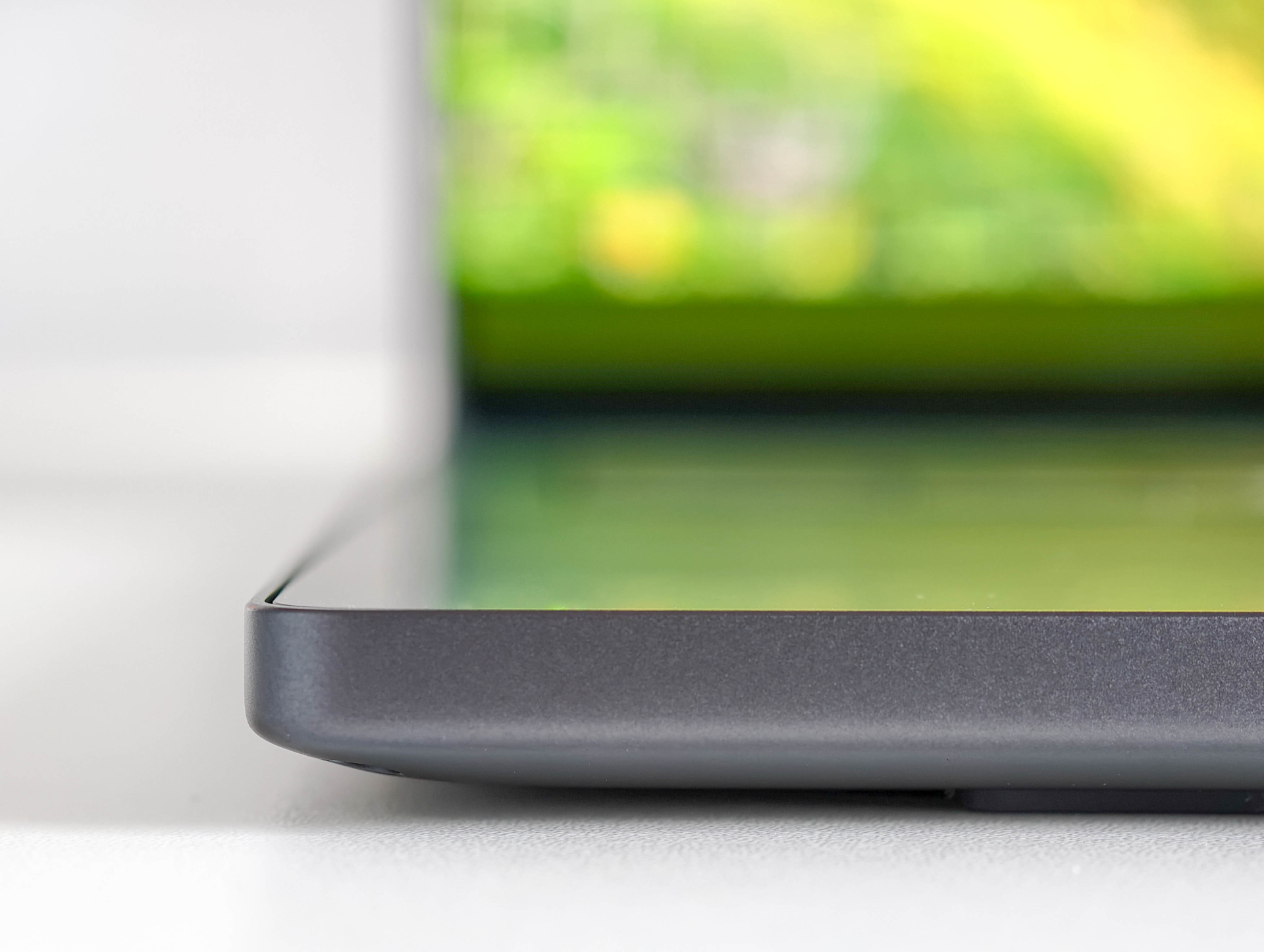
One minor drawback becomes apparent when opening the lid. There is no recessed handle, which means the lid isn't always as easy to open.
Connections: USB-C and not much else
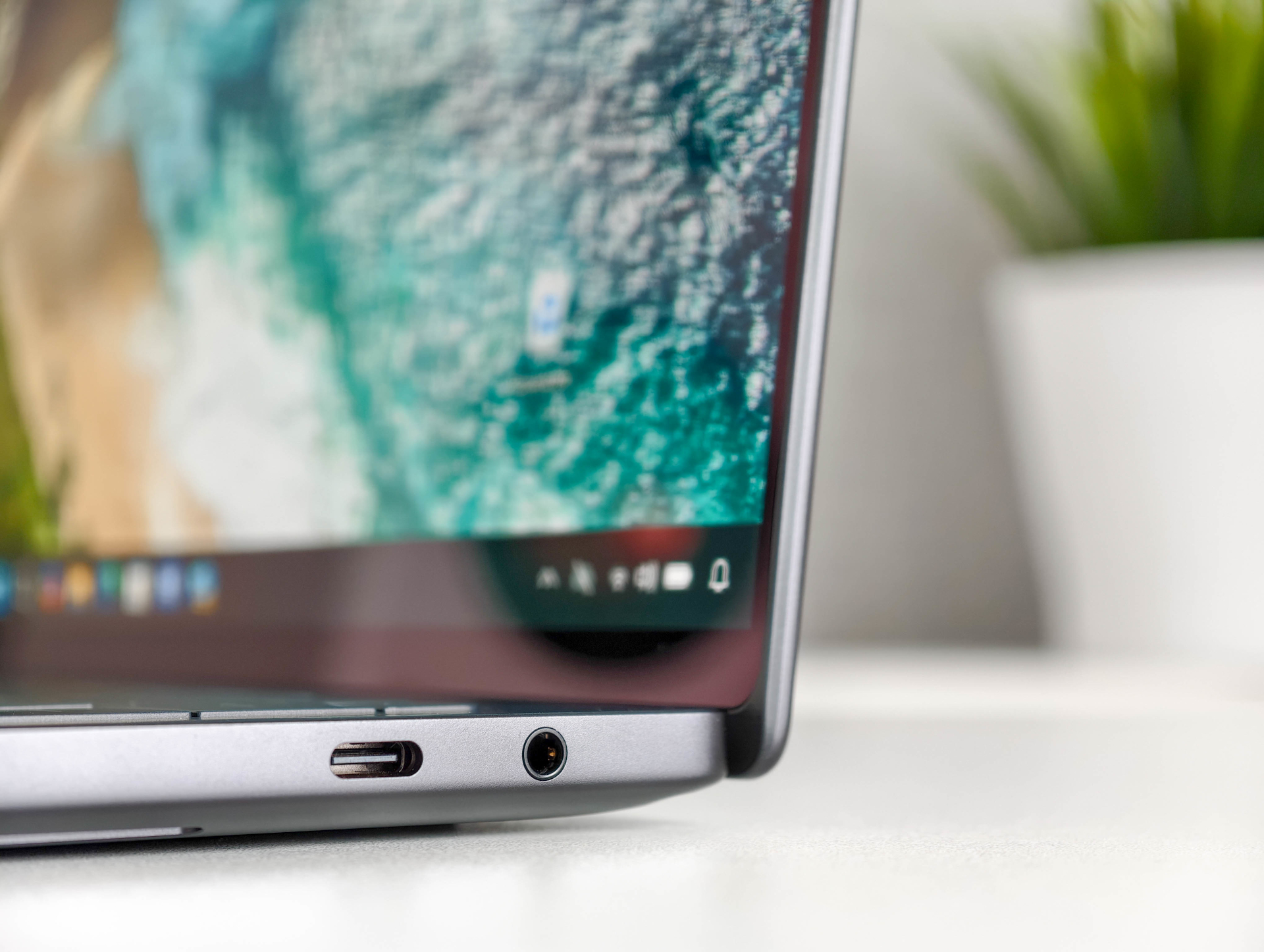
The XPS 14's ports are easy to explain. Dell has included three USB-C ports with Thunderbolt 4, as well as a combined 3,5 mm headphone/microphone jack.
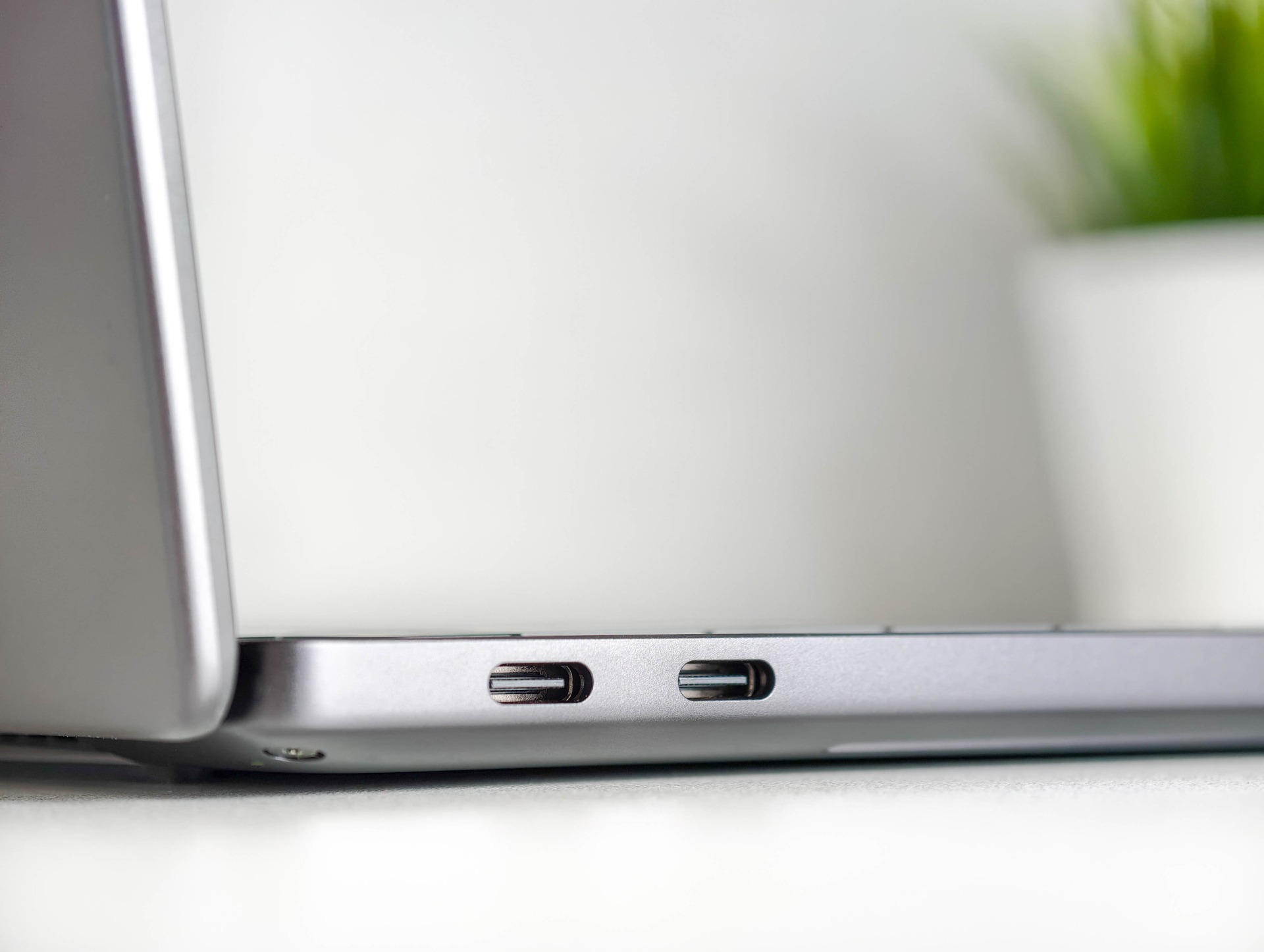
The USB-C ports support Thunderbolt 4, DisplayPort 2.1, and Power Delivery. Connecting an external monitor or charging is possible via any of the three ports.
Nevertheless, Dell takes minimalism quite far here, even though a notebook of this class is often used with a dock anyway. There's no classic USB-A port, nor HDMI or a card reader.
Keyboard and trackpad: Initially unusual, then quite good.
The so-called zero-lattice keyboard sits almost flush with the housing and largely eliminates visible gaps between the individual keys.
Since I'm used to a Lenovo ThinkPad, I had to get used to the flatter layout. Especially in the first few hours, typos were commonplace because the key spacing and travel are simply different than on the ThinkPad.
After a short adjustment period, typing on the XPS 14 was quite smooth. The keycaps are slightly concave, making them easier to distinguish from one another than they initially appear. The keystroke is relatively short, but offers decent feedback and remains quiet while typing.
The XPS 14's trackpad is also flawless. It responds precisely, reliably recognizes gestures, and offers a pleasantly smooth surface on which the cursor can be controlled accurately.
Display: OLED is worth it
Dell offers two display options. Customers can choose between a 14-inch 2K LCD without touch functionality and the 2,8K OLED tested here, with 2.880 × 1.800 pixels, touch support, and a variable refresh rate of 20 to 120 Hz.
The extra cost for the OLED is around €119, and in my opinion, it's a worthwhile investment. Colors appear vibrant, blacks are deep as is typical for OLED displays, and thanks to the high resolution, text and fine details look razor-sharp. The refresh rate of up to 120 Hz is also noticeable, for example, when scrolling through websites or longer documents.
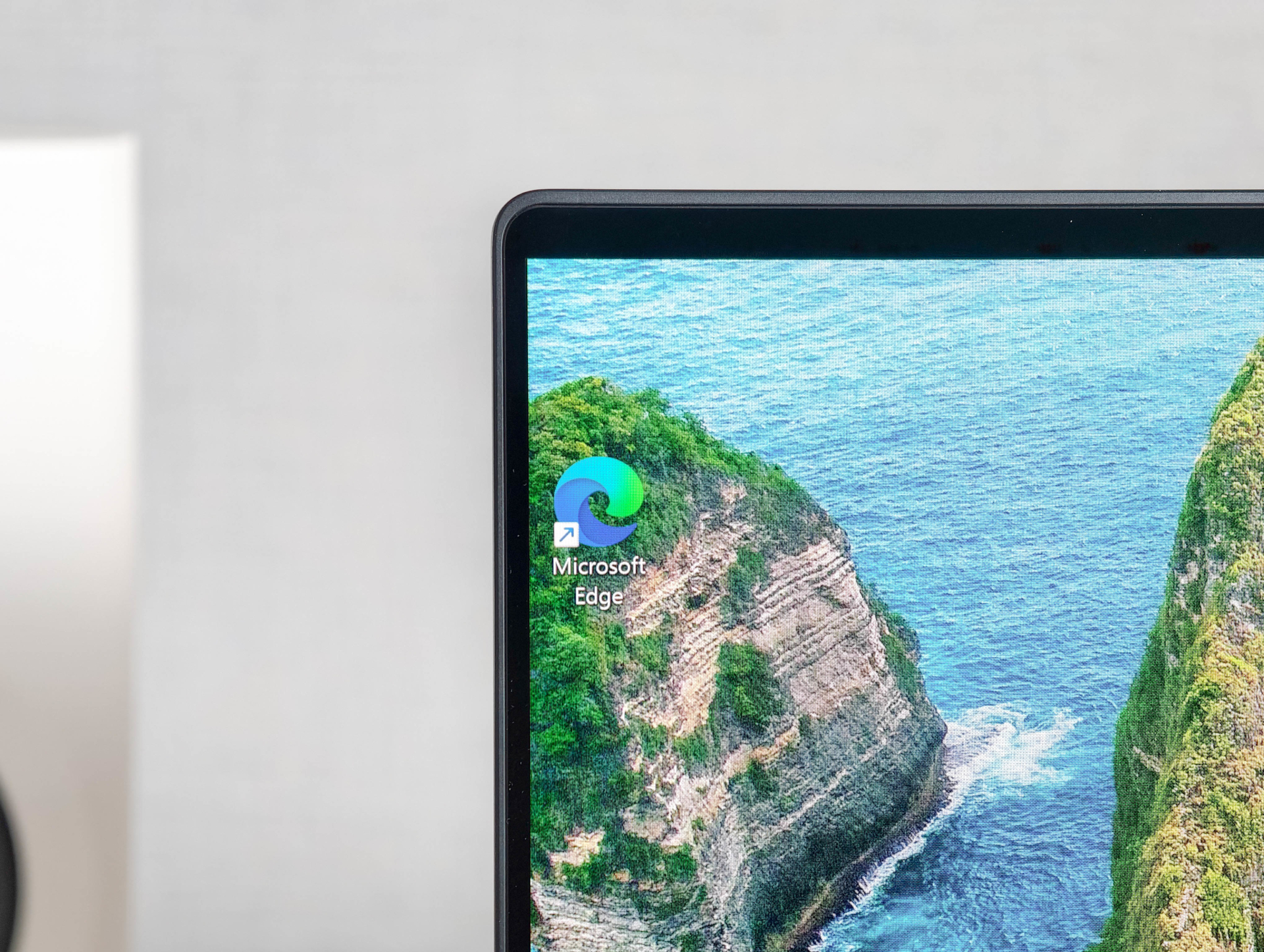
Dell specifies a brightness of 400 cd/m², which roughly corresponds to our own measurement of 380 cd/m². This is perfectly adequate for indoor use, but outdoors in direct sunlight, the brightness and reflections can definitely become an issue.
OLED displays demonstrate their greatest strength in black levels. Black pixels are not activated at all and therefore remain truly black, resulting in an excellent contrast ratio.
The panel also demonstrates stable color gamut coverage. Measurements yielded 99,9 percent sRGB, 99,8 percent DCI-P3, and 97,5 percent AdobeRGB, making it fundamentally suitable for photo and video editing.
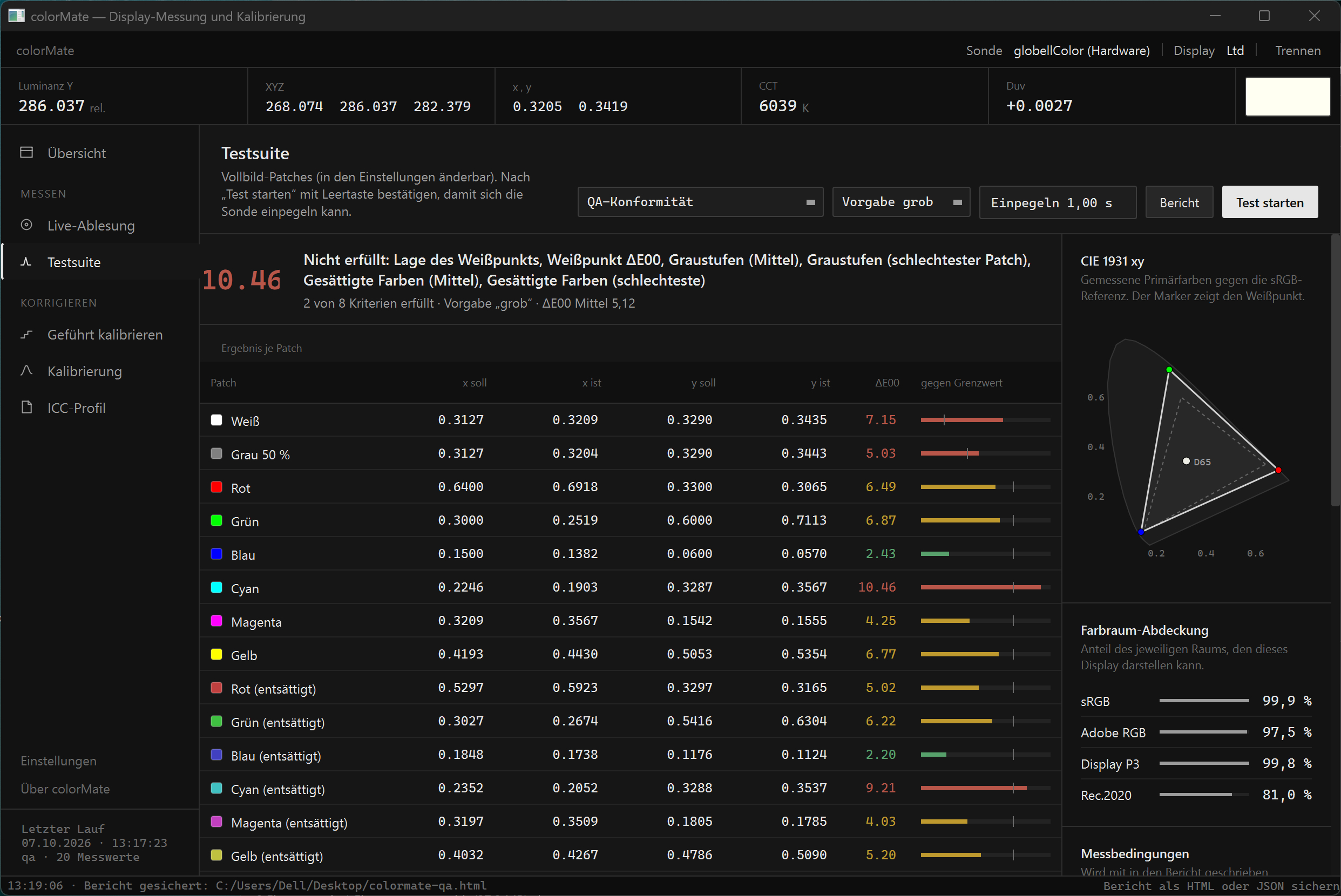
With a gamma value of 2,28, the OLED is quite close to the ideal value of 2,2. The white point, however, appears slightly warmer. Instead of the usual 6500 Kelvin, the panel's measurement fluctuates between approximately 5950 and 6225 Kelvin, depending on the brightness level. This makes white appear marginally warmer, but this isn't really noticeable in everyday use.
Only those who use the XPS 14 for truly color-critical work should perhaps plan for calibration.
Performance: Fast enough for much more than Office
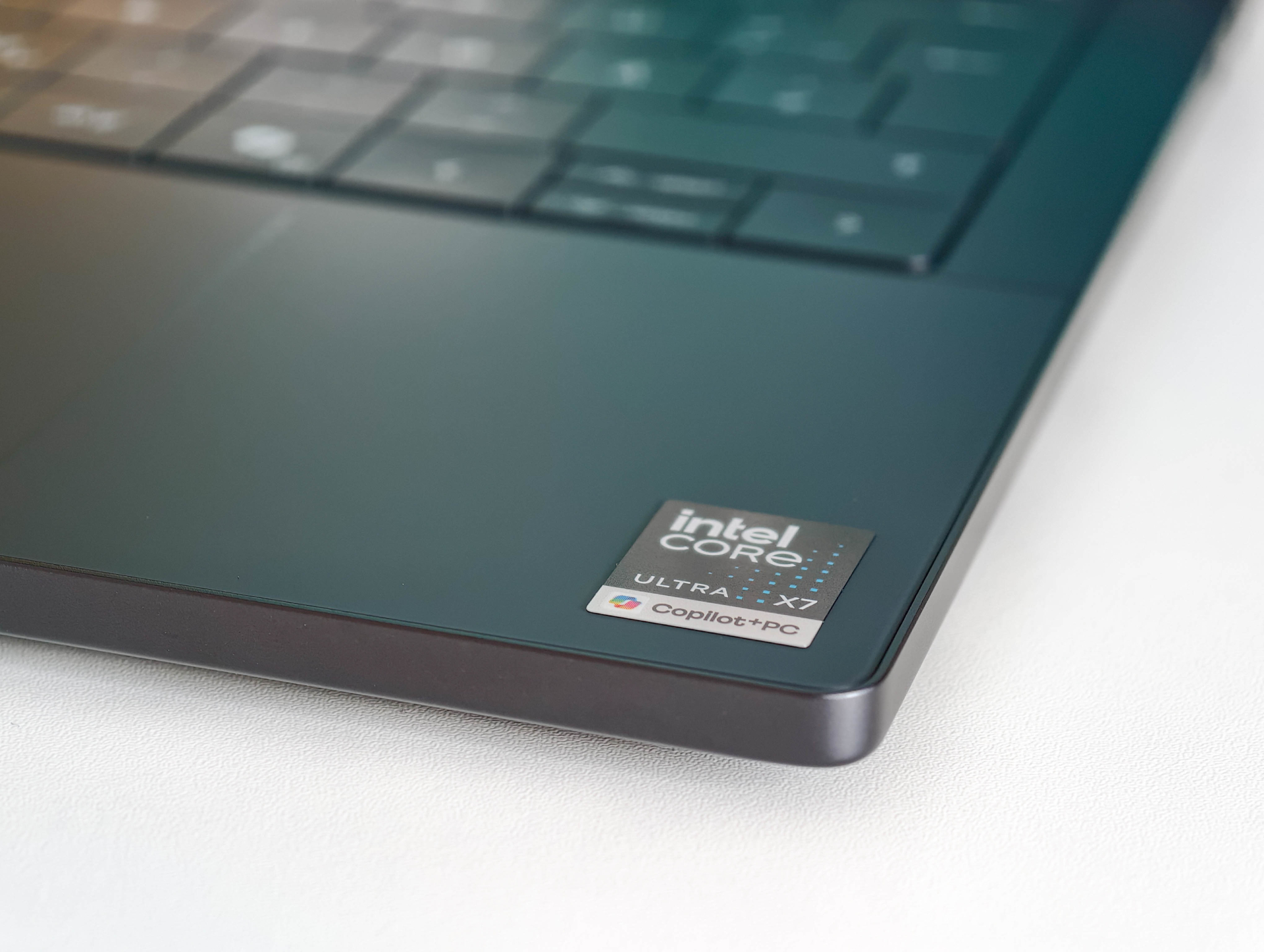
The test unit features the Intel Core Ultra X7 358H along with 32 GB of LPDDR5 RAM. The processor has 16 cores and reaches clock speeds of up to 4,8 GHz, making the XPS 14 significantly more powerful than its slim chassis would initially suggest.
In everyday use, this is particularly noticeable through a very direct way of working. Windows starts quickly, programs open without long delays, and even with numerous browser tabs, Photoshop, and several Office applications running simultaneously, the XPS 14 doesn't break a sweat.
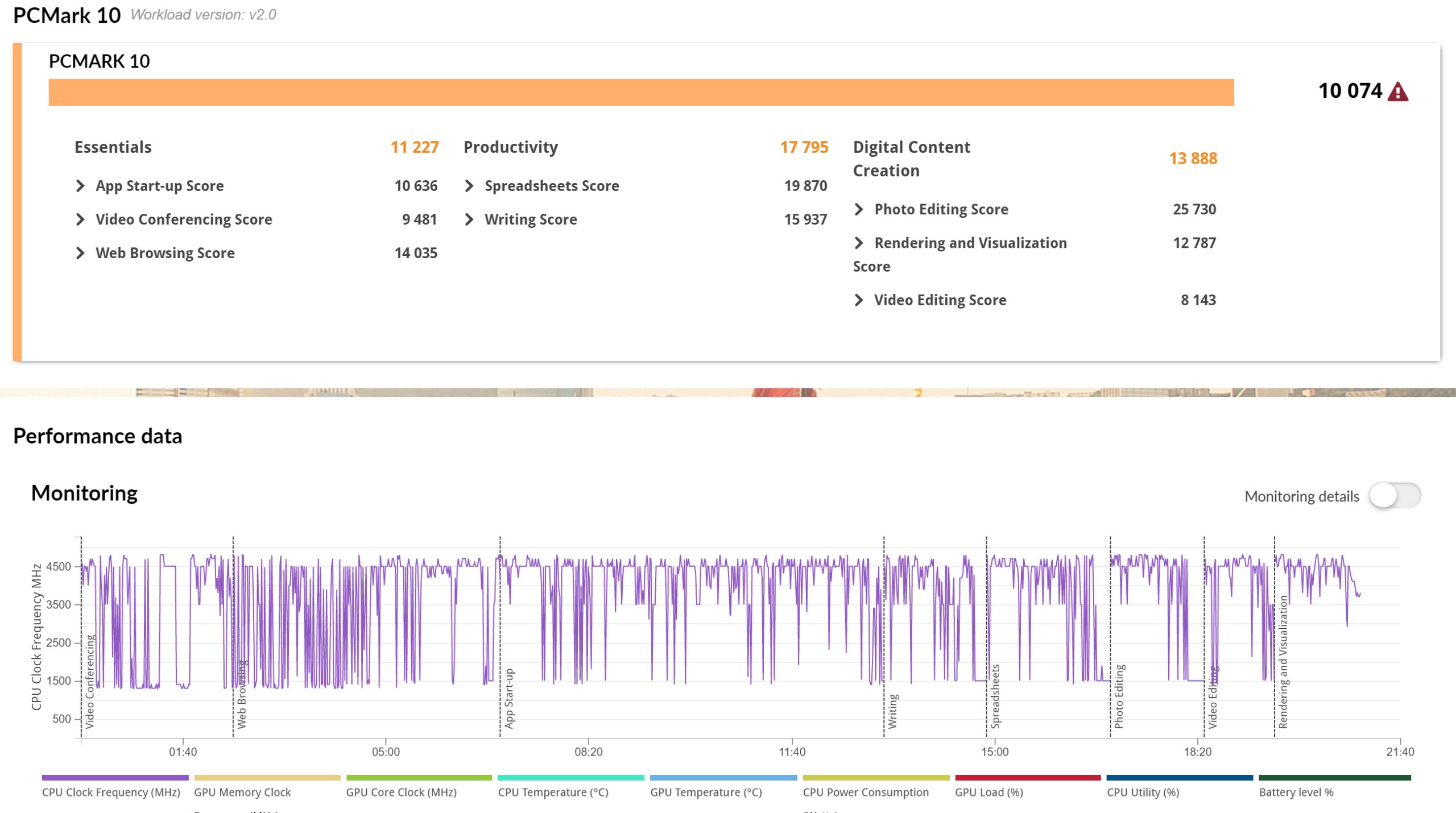
This is also confirmed by the benchmarks. In PCMark 10, it achieves 10.074 points, with the productivity score being particularly strong at 17.795 points. It also performs respectably in more demanding tasks such as photo and video editing, achieving 13.888 points in the Digital Content Creation category.
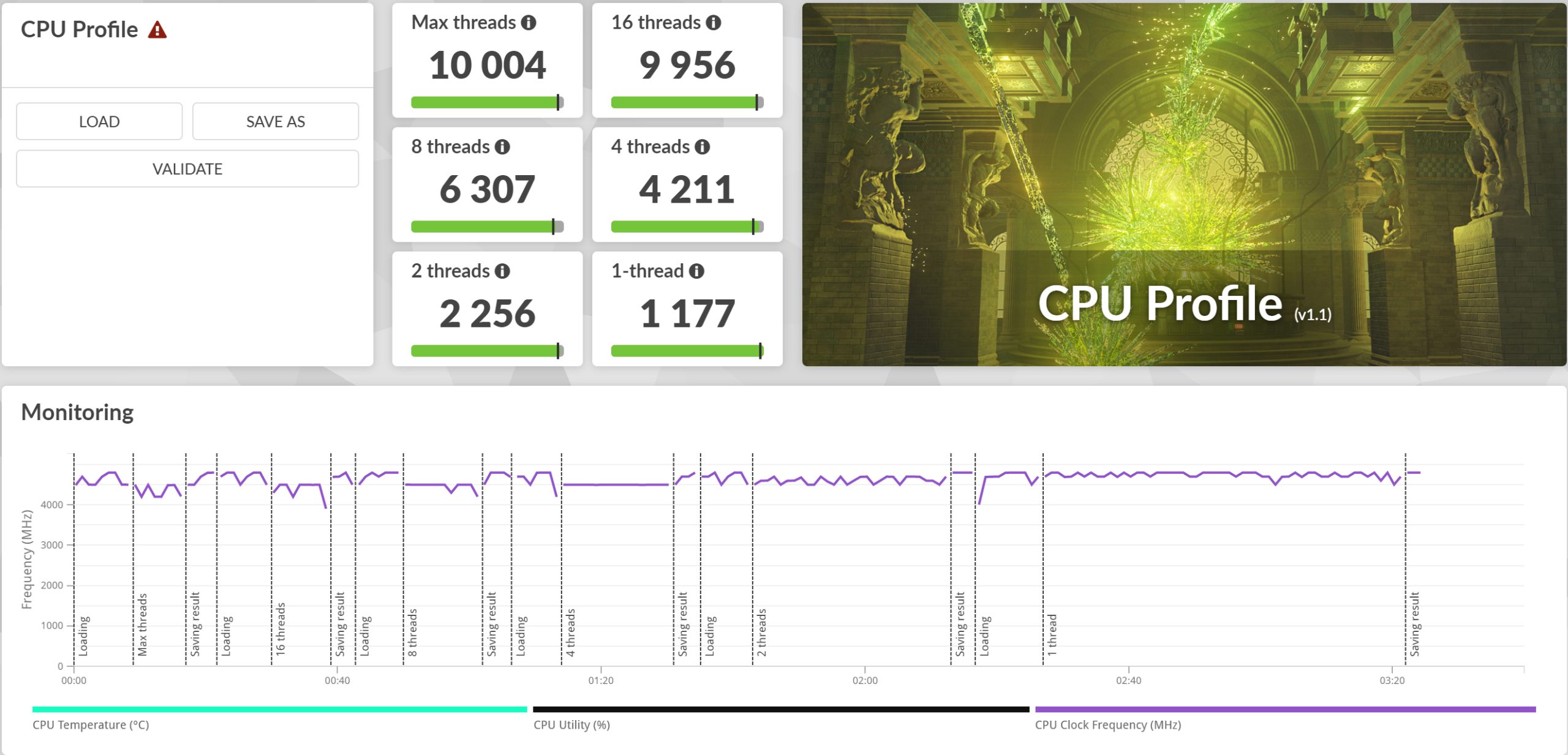
In the 3DMark CPU profile, the Core Ultra X7 358H achieves 10.004 points under full load, which suggests sufficient reserves for larger Excel spreadsheets, image editing, coding or occasional rendering.
Graphics performance: Arc B390
The XPS 14 does not have a dedicated graphics card, but rather the integrated Intel Arc B390 iGPU.
In 3DMark Steel Nomad Light, the XPS 14 achieves 5.915 points or 43,82 FPS. In the more demanding Speed Way benchmark, it still manages 830 points at 8,31 FPS.
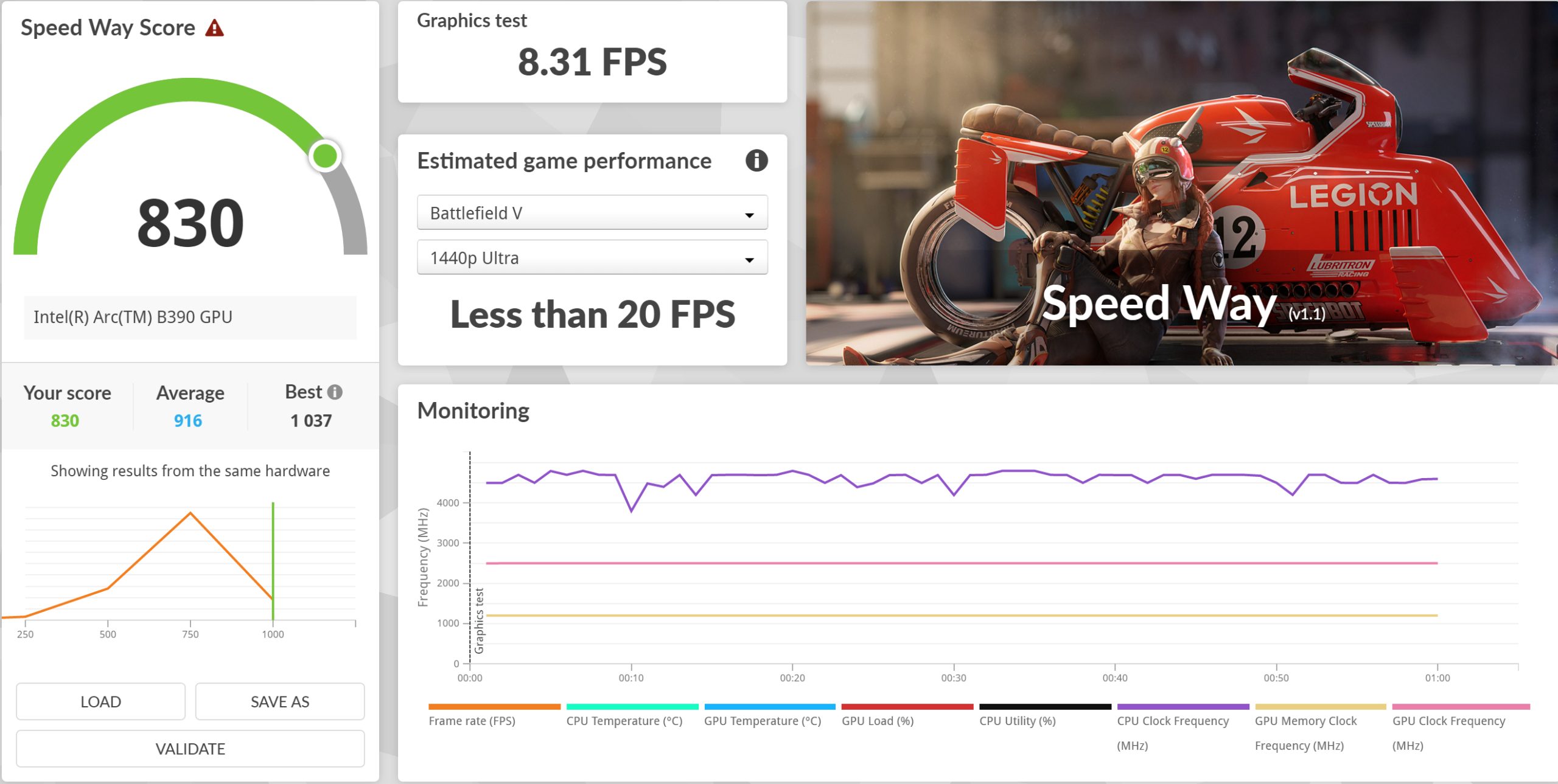
In everyday use, this is obviously insufficient for current AAA games with high detail settings. However, less demanding titles like Counter-Strike 2, Valorant, League of Legends, Rocket League, or Fortnite can be played smoothly with reduced detail settings and a suitable resolution.
Local AI: Quite possible
The Arc B390 becomes even more interesting in creative applications and increasingly also in local AI. Instead of necessarily sending sensitive documents, texts, or images to the cloud, many models can now be run directly on the notebook.
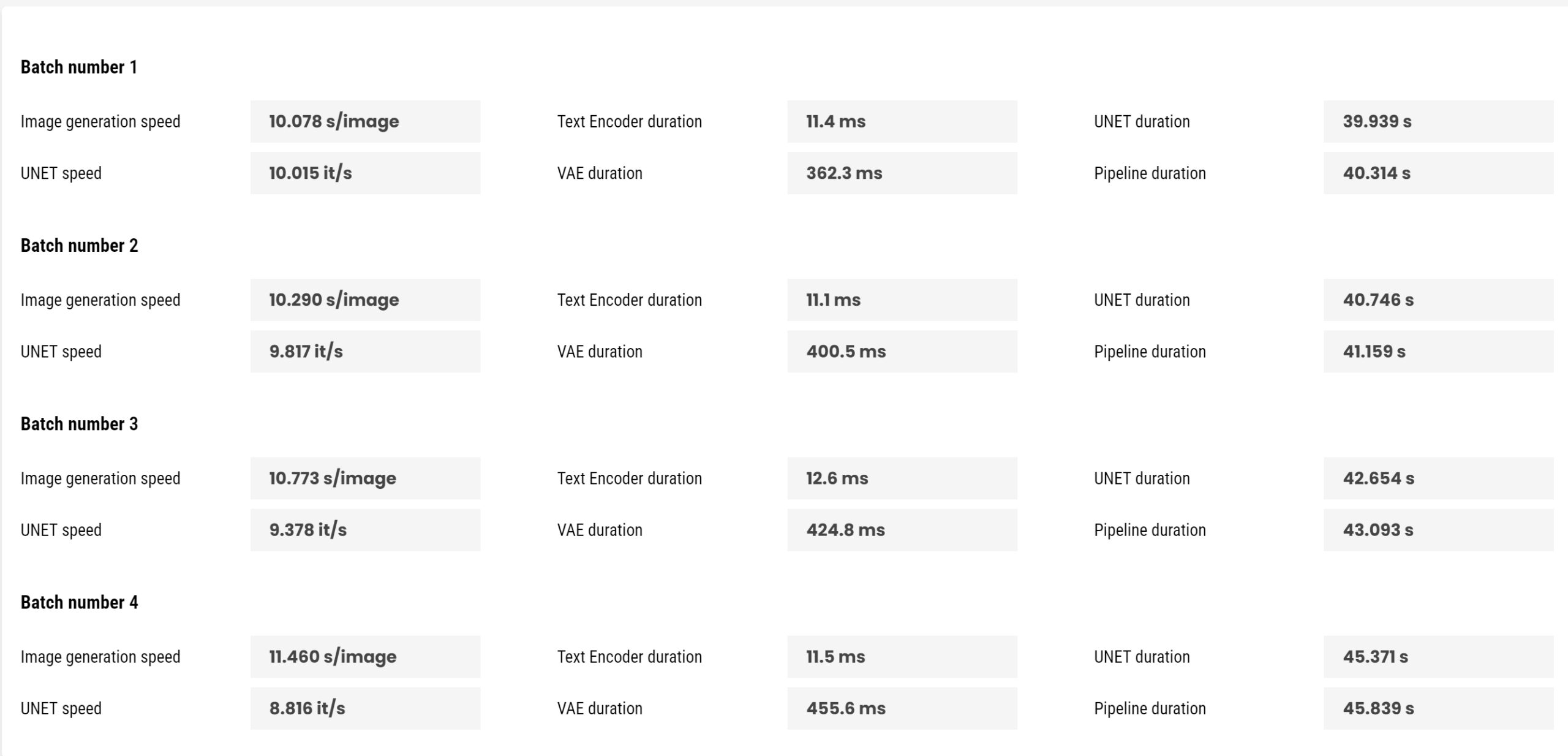
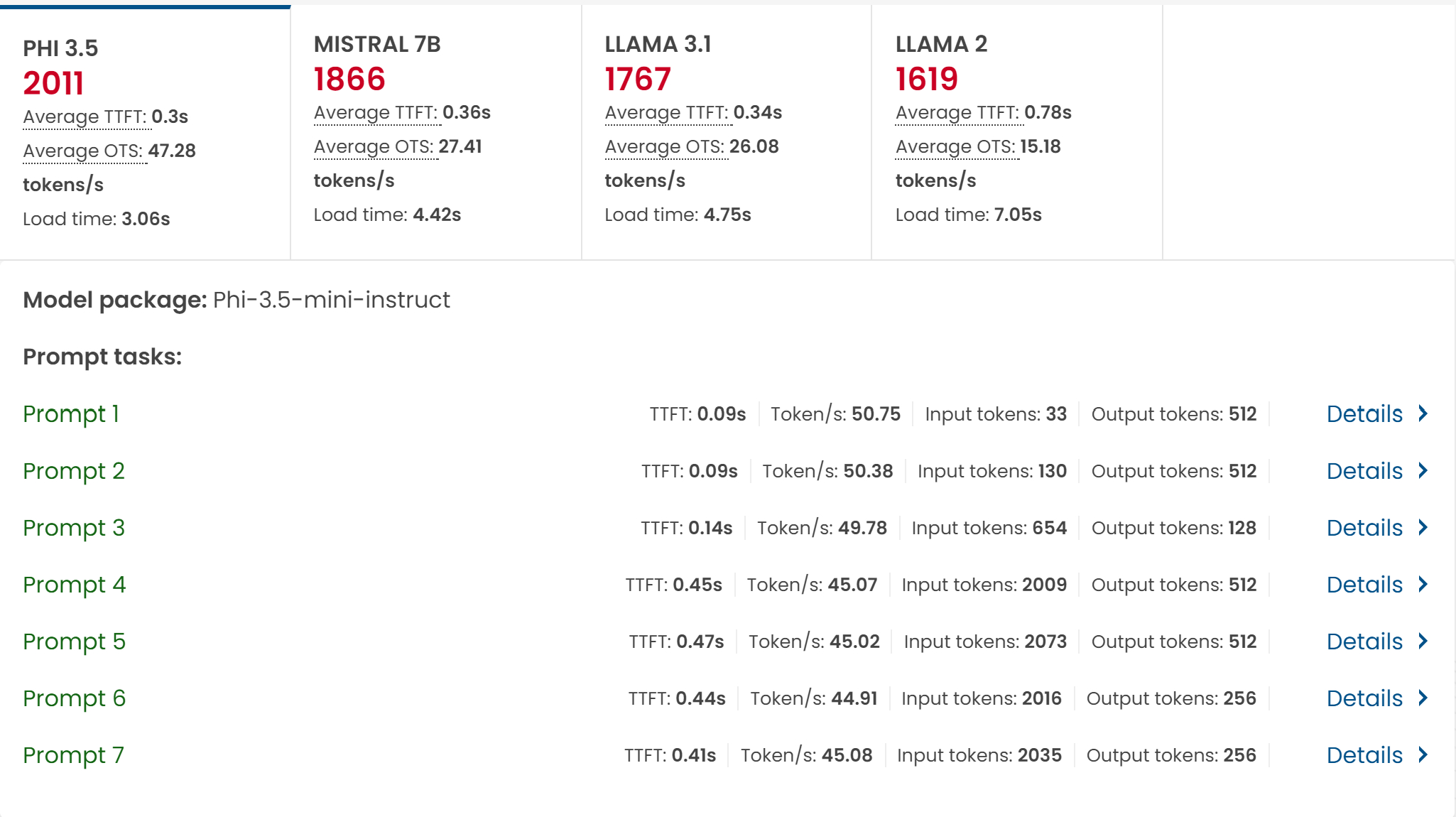
The Procyon AI benchmark demonstrates how well this already works. Image generation using Stable Diffusion 1.5 via OpenVINO takes approximately 170 seconds for 16 images with 512 × 512 pixels, averaging 10,65 seconds per image.
Local speech models like Phi-3.5-mini achieve around 47,3 tokens per second and begin outputting after just under 0,30 seconds. Larger models like Mistral-7B reach approximately 27,4 tokens/s and Llama 3.1-8B about 26,1 tokens/s.
This is quite suitable for tasks such as summarizing or translating local documents, providing coding assistance, or creating a small private chatbot without going through a cloud service.
The XPS 14 doesn't quite reach the level of Apple's MacBooks in this respect. Apple benefits from the tight integration of Unified Memory, high memory bandwidth, and a software ecosystem around Metal and MLX that is now very well optimized for Apple Silicon.
Intel takes a slightly different approach. In the Core Ultra X7, the CPU, Arc GPU, and NPU work together as an AI accelerator; however, the specific software determines which unit is actually used. Therefore, the NPU is not automatically an advantage in every local AI application.
SSD, cooling and noise level
The test device features a 1 TB KIOXIA BG7 NVMe SSD for mass storage. In the 3DMark Storage Benchmark, it achieves 2.311 points, an average bandwidth of approximately 392,5 MB/s, and an average access time of 77 microseconds.
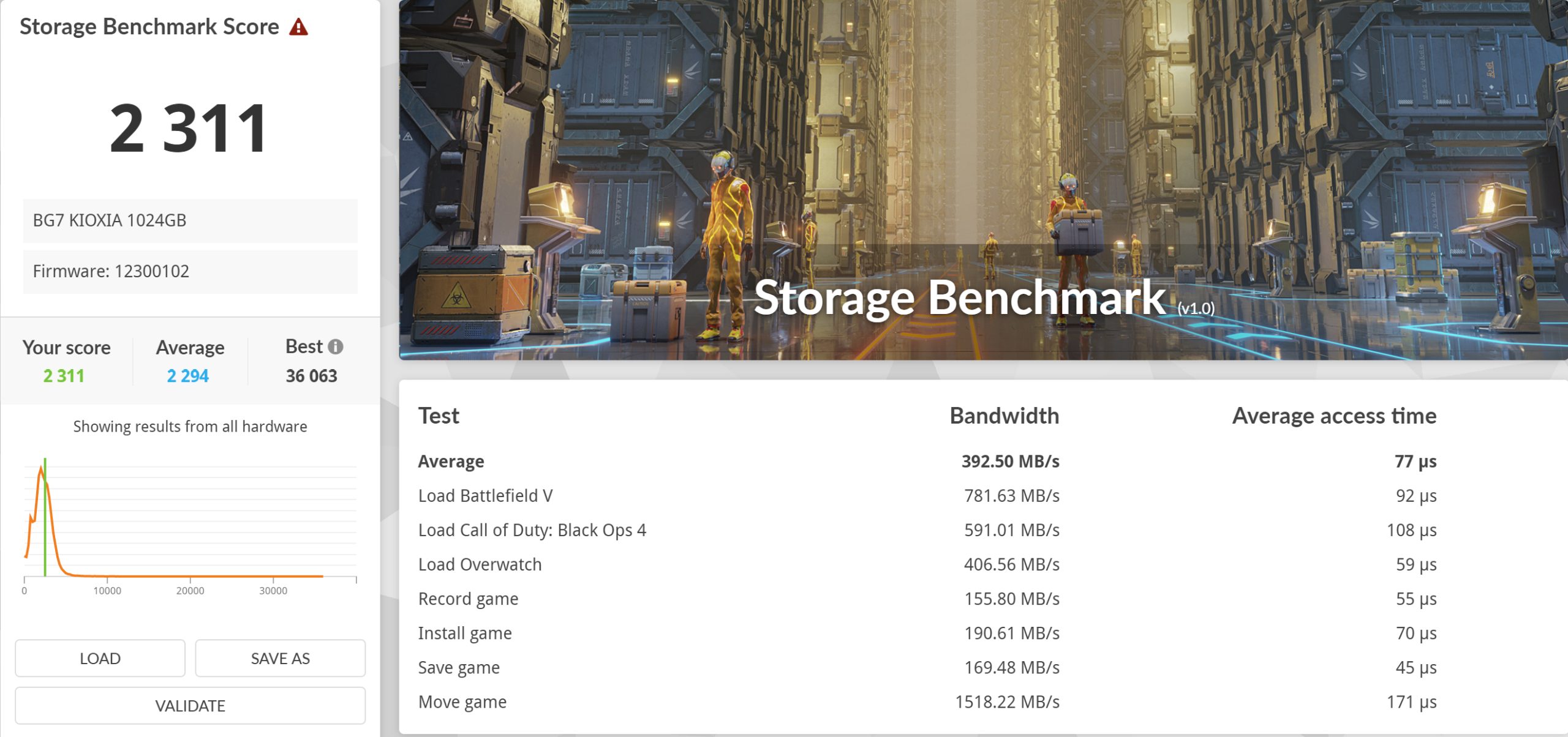
In everyday use, this isn't very noticeable, but for a premium notebook, the SSD performance could have been a bit higher. Especially for longer transfers or large media projects, there are now faster NVMe SSDs available.
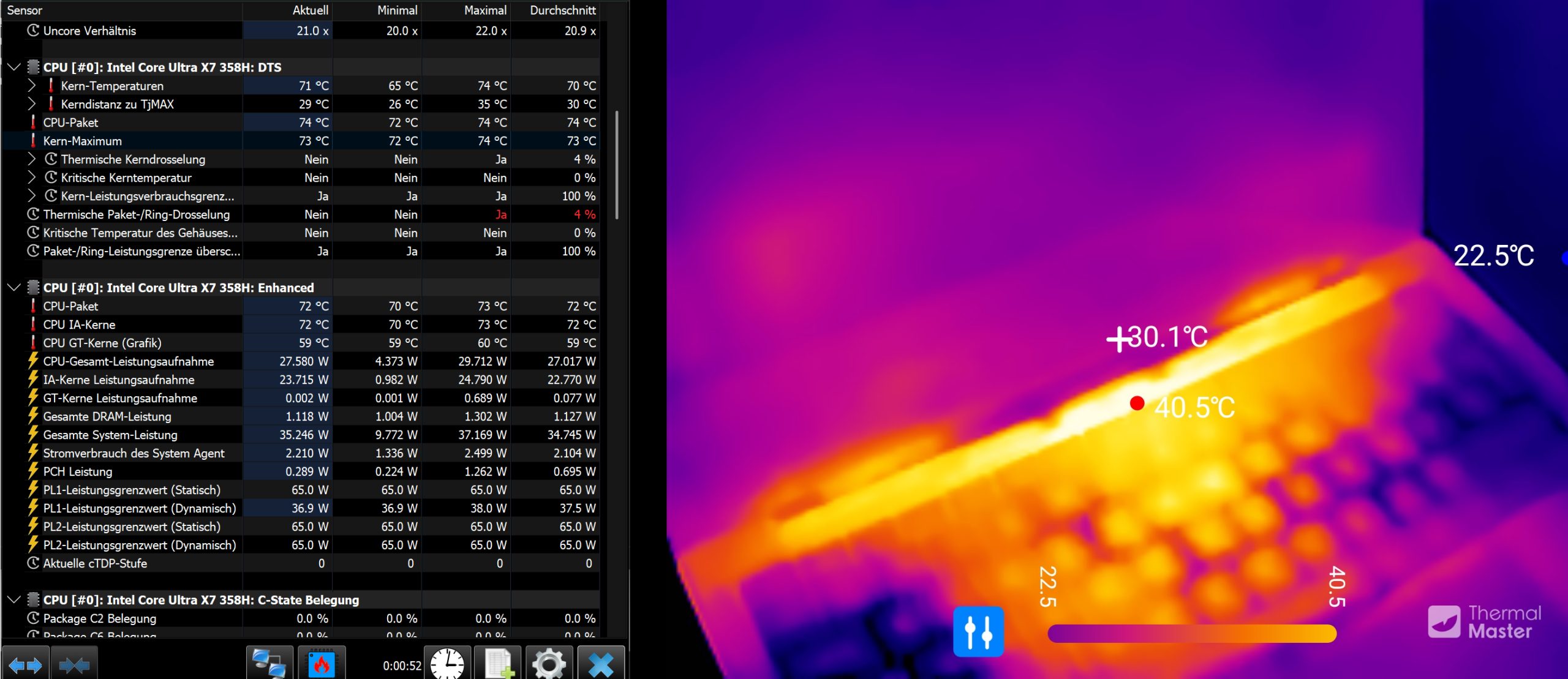
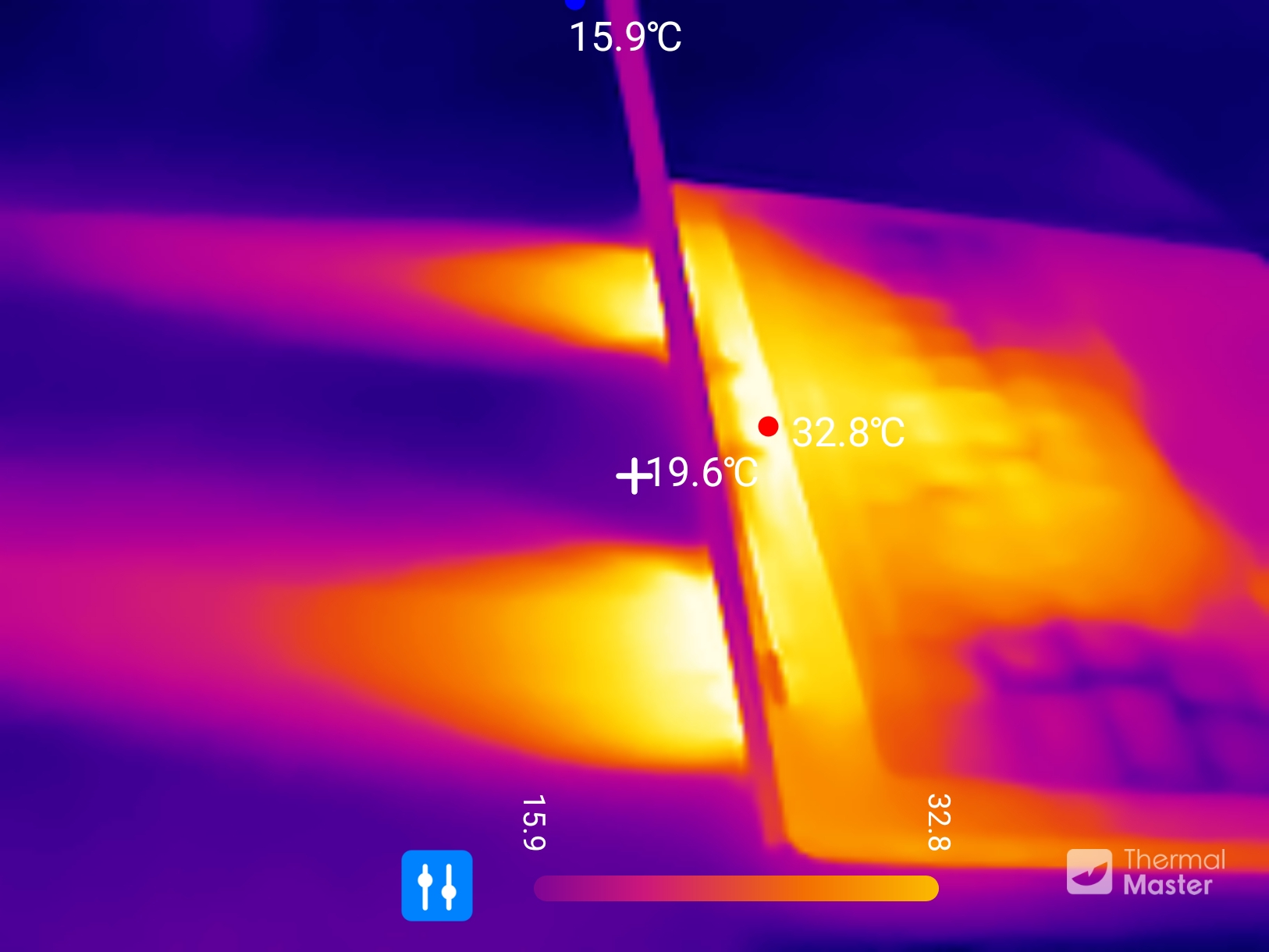
The cooling system, on the other hand, operates discreetly. During office work, web browsing, and streaming, the XPS 14 remains mostly quiet. Only under sustained CPU or GPU load do the fans become audibly louder, but the noise is never disturbing or unpleasantly shrill. Under prolonged load, the aluminum chassis warms up noticeably, but the typical contact surfaces don't get excessively hot.
Speakers, webcam and Wi-Fi
The 10-watt system delivers surprisingly powerful sound for its compact size and reaches a decent volume without distorting at higher levels. It's easily sufficient for music, YouTube, or watching a series now and then. Vocals come through clearly, highs remain largely clean, and there's even some bass extension.
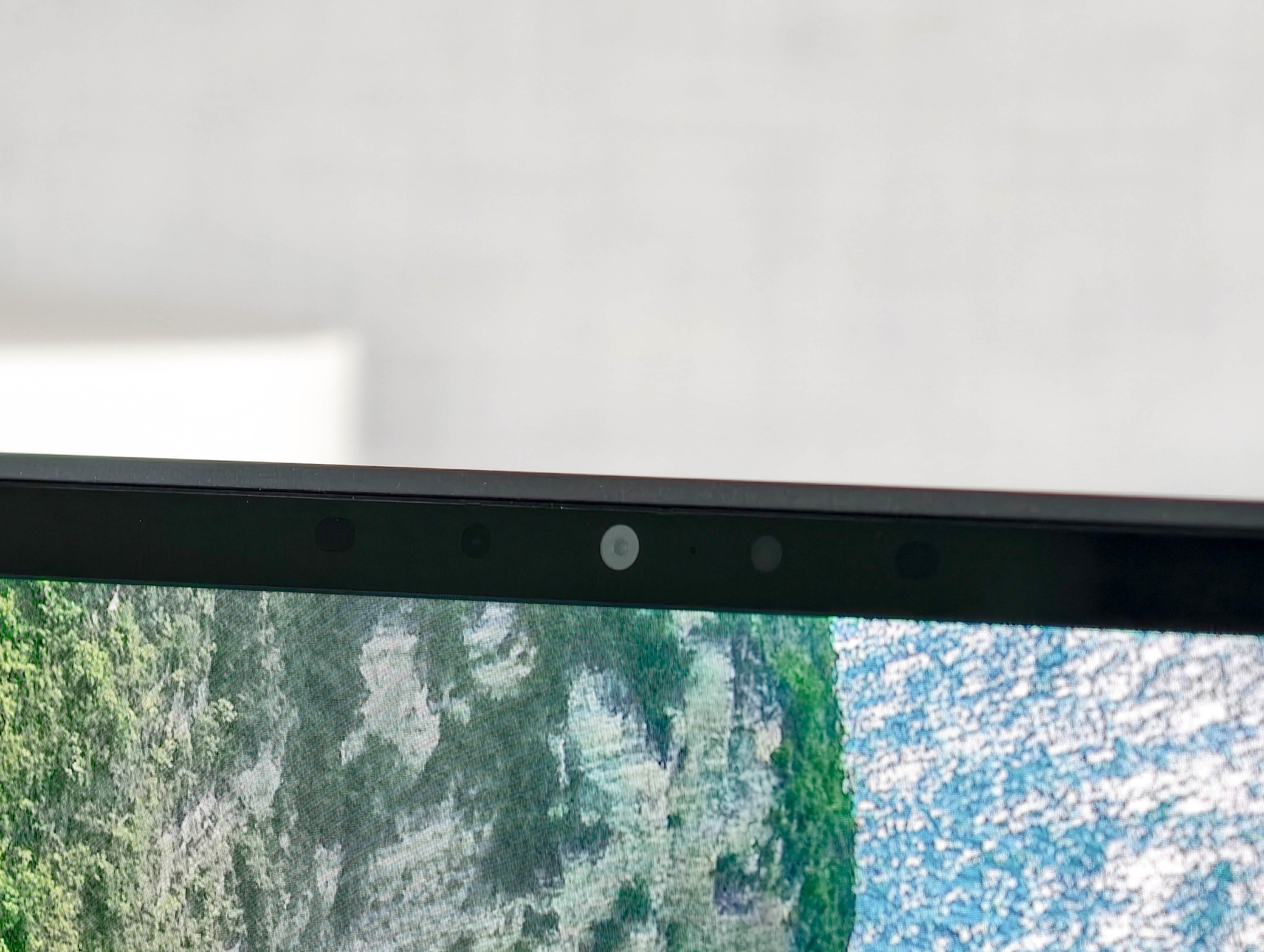
The 8-megapixel webcam is less exceptional. It delivers a sharp and generally decent image for video calls, provided there is sufficient light. It's a shame, however, that Dell opted not to include a physical privacy shutter, although that probably wouldn't have suited the unibody design.
For wireless connections, Dell relies on Wi-Fi 7 with Intel's BE211 module. In testing, the connection was stable and unobtrusive; no major issues with range or throughput were observed.
Battery: Powerful, but the OLED display reduces battery life somewhat.
The XPS 14 has a battery with around 70 Wh, which is decently sized for a slim 14-inch notebook.
In the office test, the notebook consumed approximately 7 to 8 percent of its battery charge within one hour, depending on the task. Extrapolating from this, this translates to roughly 12 to 14 hours of battery life under comparable conditions.
With lighter usage, reduced screen brightness, and less demanding conditions, even more battery life is possible, making a full workday without needing a power outlet easily achievable. The version with an IPS panel lasts slightly longer, with Dell claiming a runtime of up to 31 hours.
Those who prioritize maximum battery life will likely be better off with the LCD version. Charging is done via USB-C with Power Delivery, and because all three ports can be used for this, you have flexibility in placing the power adapter.
Dell includes a 100-watt power adapter. With ExpressCharge, the battery is about 80 percent charged again in around an hour with the notebook switched off – pleasantly fast for a quick stop at the power outlet.